今天我們拿 @mrliuas 的NotePad,實做一個可以把內容儲存在瀏覽器LocalStorage的單機網頁記事本。
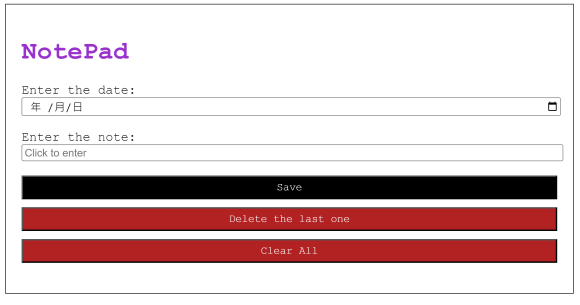
mrLiUAs NotePad
我們今天就以此為雛形,製作一個記事本。
記事本基本功能
記事本不外乎是把東西寫進去、讀出來、刪掉、修改,也是Database常見的四大操作INSERT, SELECT, DELETE, UPDATE
新增
新增一項記事到資料中
讀取
從資料讀取部分或全部的記事然後顯示出來
刪除
把指定的記事從資料刪除
修改
修改指定的記事內容
永久儲存的問題
平常我們網頁的本地瀏覽資料,會存在瀏覽器的快取中的cookie, localStorage, SessionStorage裡面。
在一般網頁服務中,需要永久儲存的資料,通常會回傳至伺服器的資料庫中。但是在單機網頁中,我們沒有伺服器,所以我們只能利用瀏覽器的快取來儲存資料。
詳細的特性在此不多做介紹,有興趣的可以參考這篇文章。
而我們今天要利用 localStorage 分頁關閉後仍然可以儲存資料的特性,作為記事本儲存的資料庫。
如此一來我們記事的流程就變成兩路了:
- 網頁載入 >> 載入localStorage的資料到變數中 >> 把資料顯示在畫面上
- 新增事項 >> 將事項新增至變數 >> 將變數資料同步到localStorage
模組化操作層面
初始化,抓取元素
因為Element這個物件本身不會動態更新,所以我們在宣告的時候就用就用const,並且直接設為document.getElementById('id')。
const saveBtn = document.getElementById('save')
const deleteBtn = document.getElementById('delete')
const deleteAllBtn = document.getElementById('deleteAll')
const list = document.getElementById('list')
const date = document.getElementById('date')
const note = document.getElementById('note')
初始化,讀取LocalStorage資料
將localStorage的資料讀到變數中,如果沒有資料就初始化一個空陣列。
if (localStorage.listContent == undefined) {
    localStorage.listContent = JSON.stringify([])
}
let listContent = JSON.parse(localStorage.listContent)
同步更新畫面上顯示的資料
在每次操作資料時,都要同步更新畫面上顯示的資料,當資料改動時就呼叫render()函式,將資料渲染到畫面上。
render()裡面的運作原理:
foreach()迴圈:將每一筆資料都寫成新的HTML加到listHtml中,最後再將listHtml的內容渲染到list元素中。
foreach()的詳細說明參見這篇文章。list.innerHTML:將listHtml的內容渲染到前面設定的list元素中。
innerHTML的詳細說明參見這篇文章。
function render(listContent) {
    let listHtml = ''
    listContent.forEach(function (item) {
        listHtml = listHtml + `
            <div class='listItem'>
                <p>Date: ${item.date}</p>
                <p>Note: ${item.note}</p>
            </div>
            `
        })

    list.innerHTML = listHtml
}
將暫存在變數的內容同步到永久儲存區
前面有提到我們要將記事資料儲存在localStorage中,而這邊就是在本地資料有變動時,將資料同步寫入到localStorage中。
function saveToStorage(i) {
    localStorage.listContent = JSON.stringify(i)
}
按鈕事件
按鈕點按時會觸發click事件,在觸發時綁定對應的EventListener
Javascript Array詳細的內建Method可以參考這篇文章。
儲存按鈕
將date和note的值新增到listContent的陣列中,並且同步更新畫面上顯示的資料,最後清空date和note的值。
list.unshift()會將資料新增到陣列的第一筆。
saveBtn.addEventListener('click', function () {
    listContent.unshift({
        date: date.value,
        note: note.value
    })

    render(listContent)

    date.value = ''
    note.value = ''
})
刪除按鈕
將listContent的第一筆資料刪除,並且同步更新畫面上顯示的資料。list.shift()會將陣列的第一筆資料刪除,並且回傳被刪除的資料。
deleteBtn.addEventListener('click', function () {
    listContent.shift()

    render(listContent)
})
刪除全部按鈕
將listContent的資料全部刪除(清空所有記事),並且同步更新畫面上顯示的資料。
deleteAllBtn.addEventListener('click', function () {
    if (window.confirm('Are you sure to clear ALL the notes?')) {
        listContent = []
        saveToStorage(listContent)
        render(listContent)
    }
})
鍵盤事件
Enter鍵
當note元素被選取時,按下Enter鍵會觸發keyup事件,等同於新增按鈕的功能。
note.addEventListener('keyup', function (event) {
    if (event.keyCode == 13) {
        listContent.unshift({
            date: date.value,
            note: note.value
        })
        render(listContent)

        date.value = ''
        note.value = ''
    }
})
延伸閱讀
完整程式碼
index.html
<pre class="wp-block-syntaxhighlighter-code"><!DOCTYPE html>
<html lang="en">

<head>
    <meta charset="UTF-8">
    <meta http-equiv="X-UA-Compatible" content="IE=edge">
    <meta name="viewport" content="width=device-width, initial-scale=1.0">
    <title>NotePad</title>
    <meta name="description" content="Take your notes online.">
    <meta name="author" content="Jason Lee">
    <link rel="stylesheet" type="text/css" href="./style.css">
</head>

<body>
    <div id="main" style="font-family: 'Courier New', monospace;">
        <h1 id="title" style="color: darkorchid;">NotePad</h1>
        <p>Enter the date:</p>
        <input id="date" type="date">
        <br>
        <br>
        <p>Enter the note:</p>
        <input id="note" type="text" placeholder="Click to enter">
        <br>
        <br>
        <button id="save">Save</button>
        <button class="delete" id="delete">Delete the last one</button>
        <button class="delete" id="deleteAll">Clear All</button>
        <br>
        <br>
        <div id="list"></div>
    </div>

    <a href="http://./script.js">http://./script.js</a>
</body>

</html></pre>
script.js
window.addEventListener('load', function () {
    const saveBtn = document.getElementById('save')
    const deleteBtn = document.getElementById('delete')
    const deleteAllBtn = document.getElementById('deleteAll')
    const list = document.getElementById('list')
    const date = document.getElementById('date')
    const note = document.getElementById('note')

    if (localStorage.listContent == undefined) {
        localStorage.listContent = JSON.stringify([])
    }
    let listContent = JSON.parse(localStorage.listContent)

    function saveToStorage(i) {
        localStorage.listContent = JSON.stringify(i)
    }

    render(listContent)

    function render(listContent) {
        let listHtml = ''
        listContent.forEach(function (item) {
            listHtml = listHtml + `
                <div class='listItem'>
                    <p>Date: ${item.date}</p>
                    <p>Note: ${item.note}</p>
                </div>
            `
        })

        list.innerHTML = listHtml
        saveToStorage(listContent)
    }

    saveBtn.addEventListener('click', function () {
        listContent.unshift({
            date: date.value,
            note: note.value
        })

        render(listContent)

        date.value = ''
        note.value = ''
    })

    note.addEventListener('keyup', function (event) {
        if (event.keyCode == 13) {
            listContent.unshift({
                date: date.value,
                note: note.value
            })
            render(listContent)

            date.value = ''
            note.value = ''
        }
    })

    deleteBtn.addEventListener('click', function () {
        listContent.shift()

        render(listContent)
    })

    deleteAllBtn.addEventListener('click', function () {
        if (window.confirm('Are you sure to clear ALL the notes?')) {
            listContent = []
            saveToStorage(listContent)
            render(listContent)
        }
    })
})
style.css
input{
    width: 100%;
}

#main{
    width: 100%;
    padding: 20px;
    border: 1px solid #000;
    box-sizing: border-box;
}

#save{
    height: 30px;
    width: 100%;
    color:white;
    background-color:black;
    font-family:'Courier New', Courier, monospace;
}

.delete{
    margin-top: 10px;
    height: 30px;
    width: 100%;
    color:white;
    background-color:firebrick;
    font-family:'Courier New', Courier, monospace;
}

p{
    margin: 0px;
}

.listItem{
    width: 100%;
    border-bottom: 1px solid #000;
    margin-bottom: 10px;
    padding-bottom: 10px;
}
 飛翔帶你飛
飛翔帶你飛 